How to add a client
Add a new client with their contact details and notes, then find everything about them on their client record.
The Clients page
Press Clients in the menu.
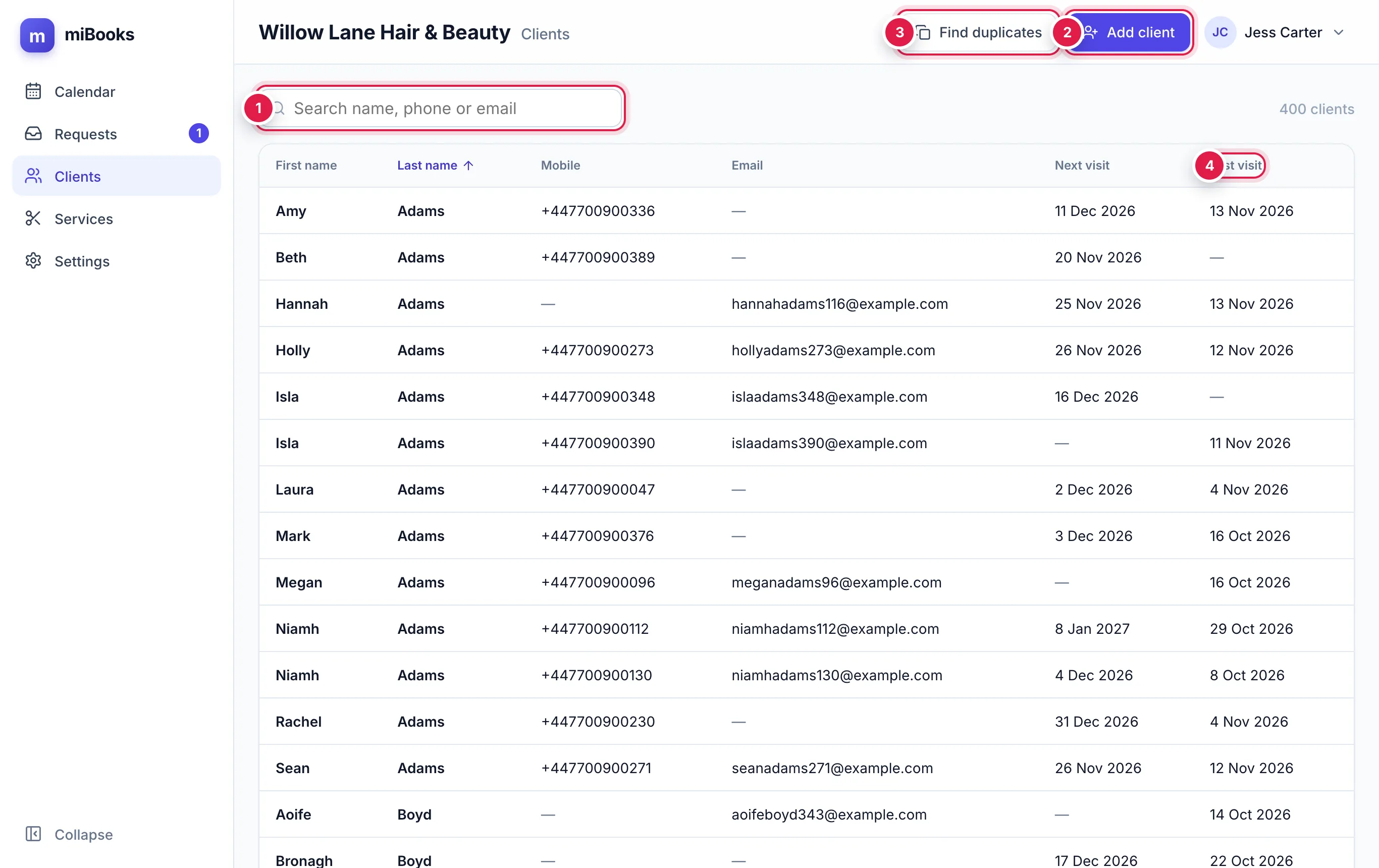
- Search 1 by name, mobile or email.
- Add client 2 adds someone new.
- Find duplicates 3 finds clients entered twice. See Duplicates and merging.
- Press a column heading such as Last visit 4 to sort by it. Press it again to reverse the order.
Add a client
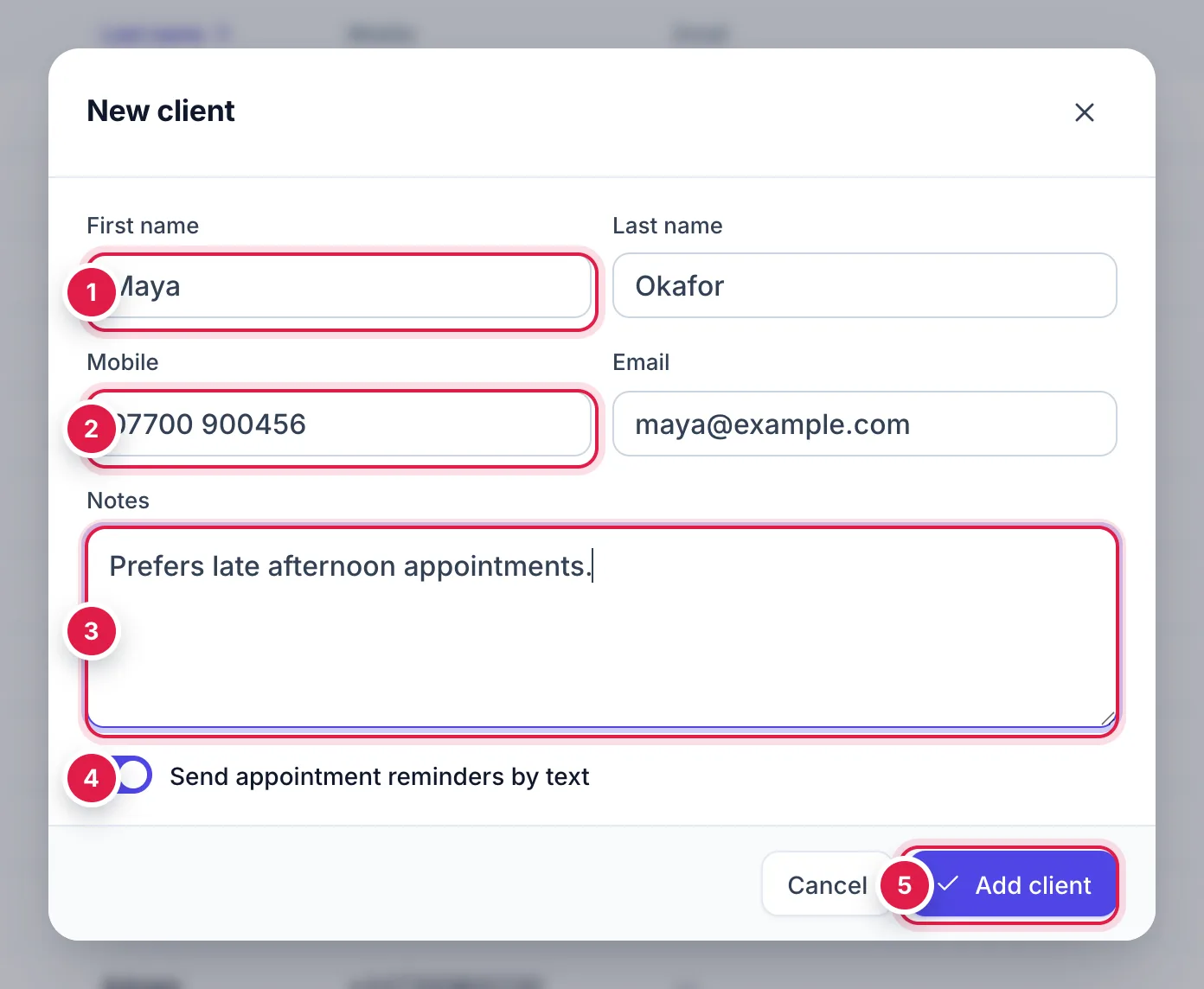
Press Add client.
Type their First name 1. Everything else is optional, but the more you add, the more useful the record is.
Add their Mobile 2 and Email. UK mobiles are tidied up automatically, so
07700 900456and+44 7700 900456are the same number.Use Notes 3 for anything to remember: allergies, preferences, a usual formula.
Leave Send appointment reminders by text 4 ticked unless they've asked not to get texts.
Press Add client 5. Their record opens straight away.
The client record
Press any client to open their record.
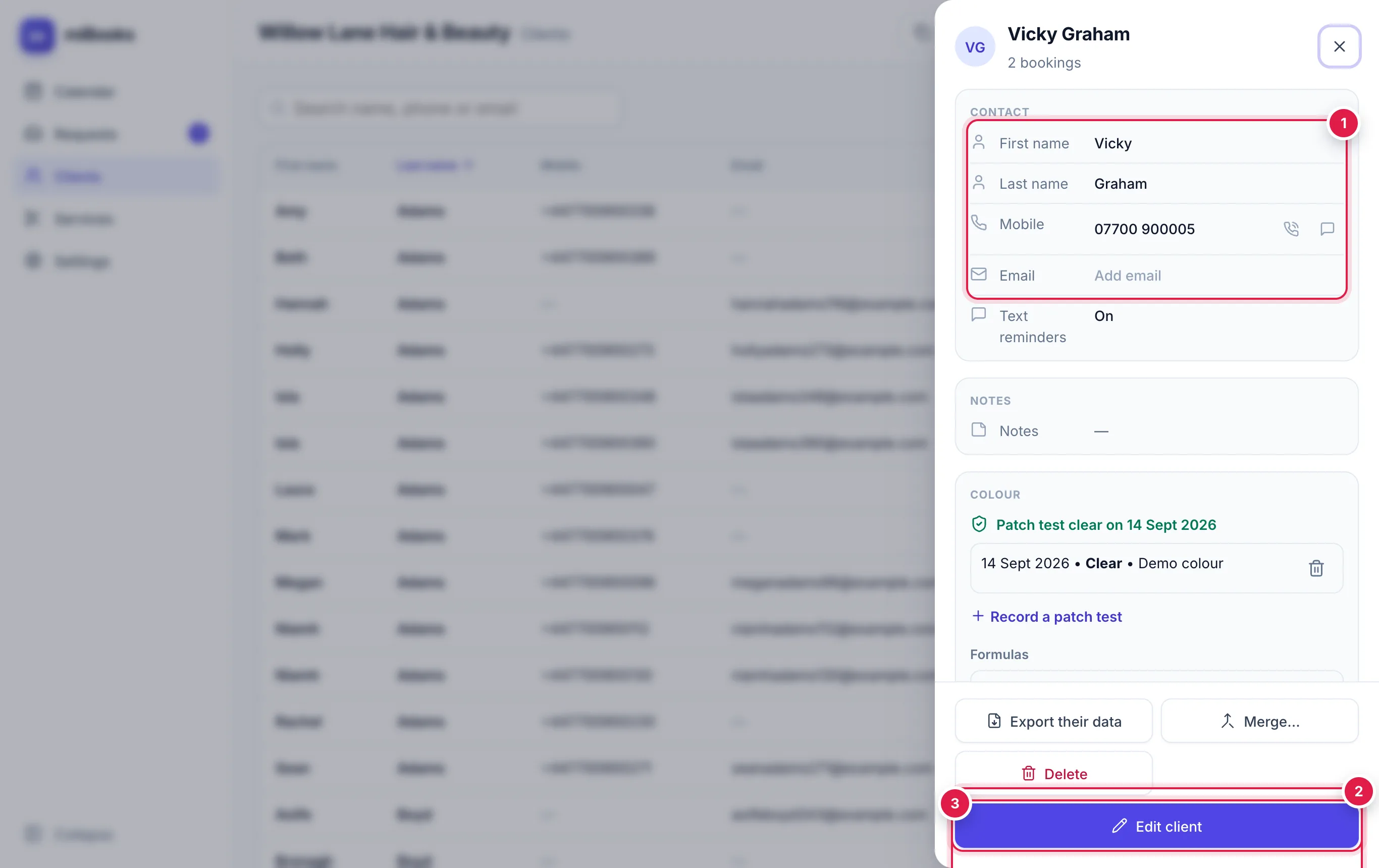
Contact 1: name, mobile and email. Change any of them right here and press Save. Use the icons beside the mobile to call or text.
Upcoming and History 2: every booking, newest first. Press one to jump to that day in the diary.
Edit client 3: change their details, notes or text reminder choice.
The record also shows:
- how many bookings they've had and how much they've spent;
- whether text reminders are On or Off (opted out);
- their no-shows, if any;
- their Colour record: patch tests and colour formulas. See Colour records.
Appointment notes and client notes
There are two kinds of note:
| Where | Use it for | |
|---|---|---|
| Client notes | The client's record (Edit client → Notes) | Things that are always true: allergies, preferences, "likes a quiet appointment". |
| Booking notes | One booking (Edit booking → Notes) | Things about that visit only: "bringing a photo", "running 10 mins late". |
Client notes show on the client record. Booking notes show when you press the booking in the diary.