Managing and approving client requests
Approve an online request to put it in the diary, suggest a different time, or decline it. The client is emailed at every step.
Where requests appear
New requests show up in three places:
- Requests in the menu, with a number for how many are waiting 1;
- the diary, as a dashed, striped block at the requested time;
- your email inbox. Stylists get emails at the address on their staff record (Settings → Staff & hours), and admins at their login email.
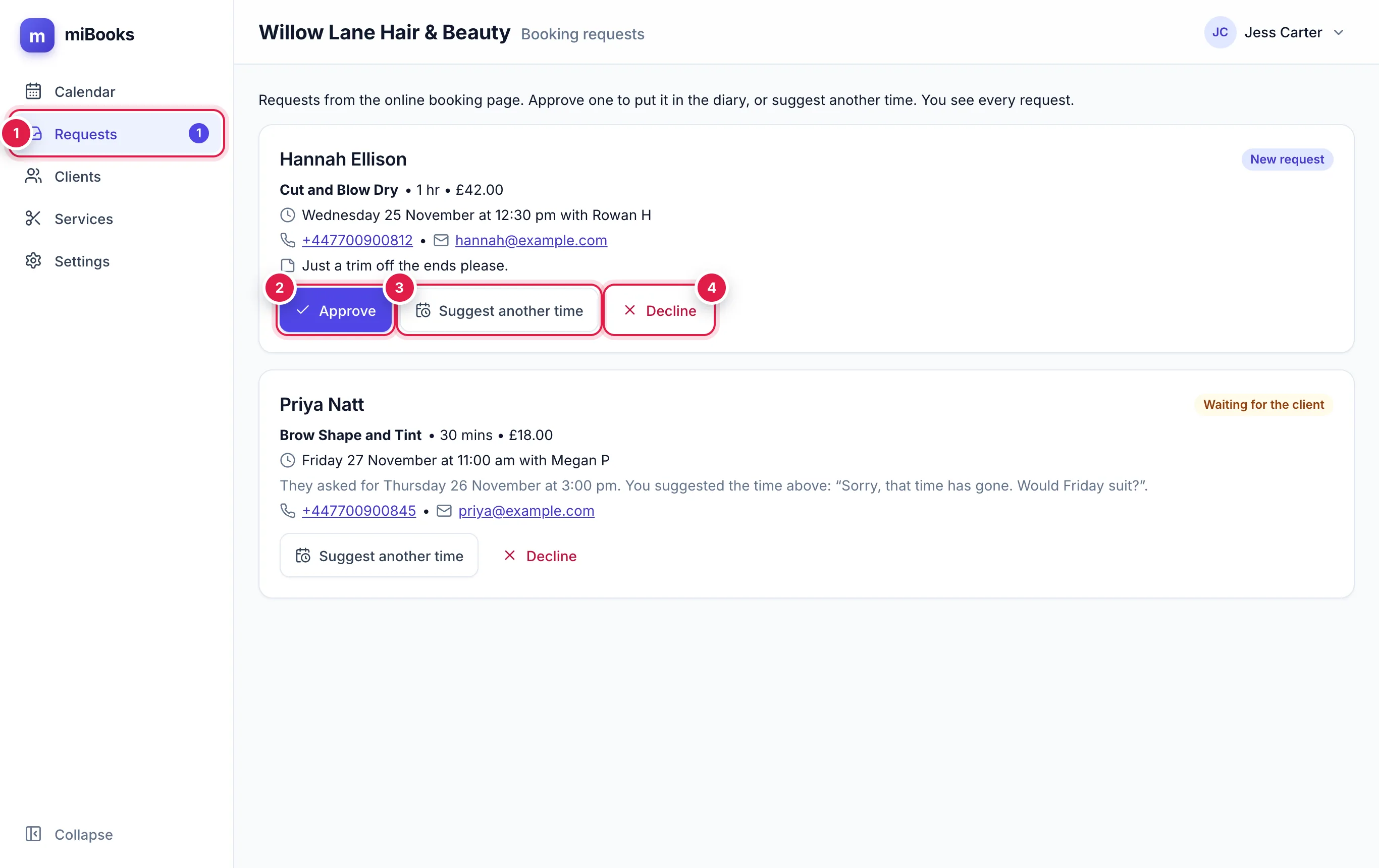
Each request shows the client's name, the services, length and price, the day and time, the stylist, their mobile and email, and any note they left. New request means it's waiting for you. Waiting for the client means you've suggested another time.
Approve a request
Open Requests and find the request.
Press Approve 2.
Confirm. The booking goes in the diary and the client is emailed a confirmation.
The new booking is like any other. Its origin is Online, and the client's note is copied into the booking notes. If their mobile matches a client you already have, the booking goes on that client's record. Otherwise miBooks adds them as a new client.
Suggest another time
Use this when the requested time doesn't work, or has gone.
Press Suggest another time 3.
Pick a Day 1. Admins can also choose a different Stylist.
If you like, add a Short note for the client 2, such as "Sorry, 2pm is taken. How about this?"
Press one of the free times 3, then confirm.
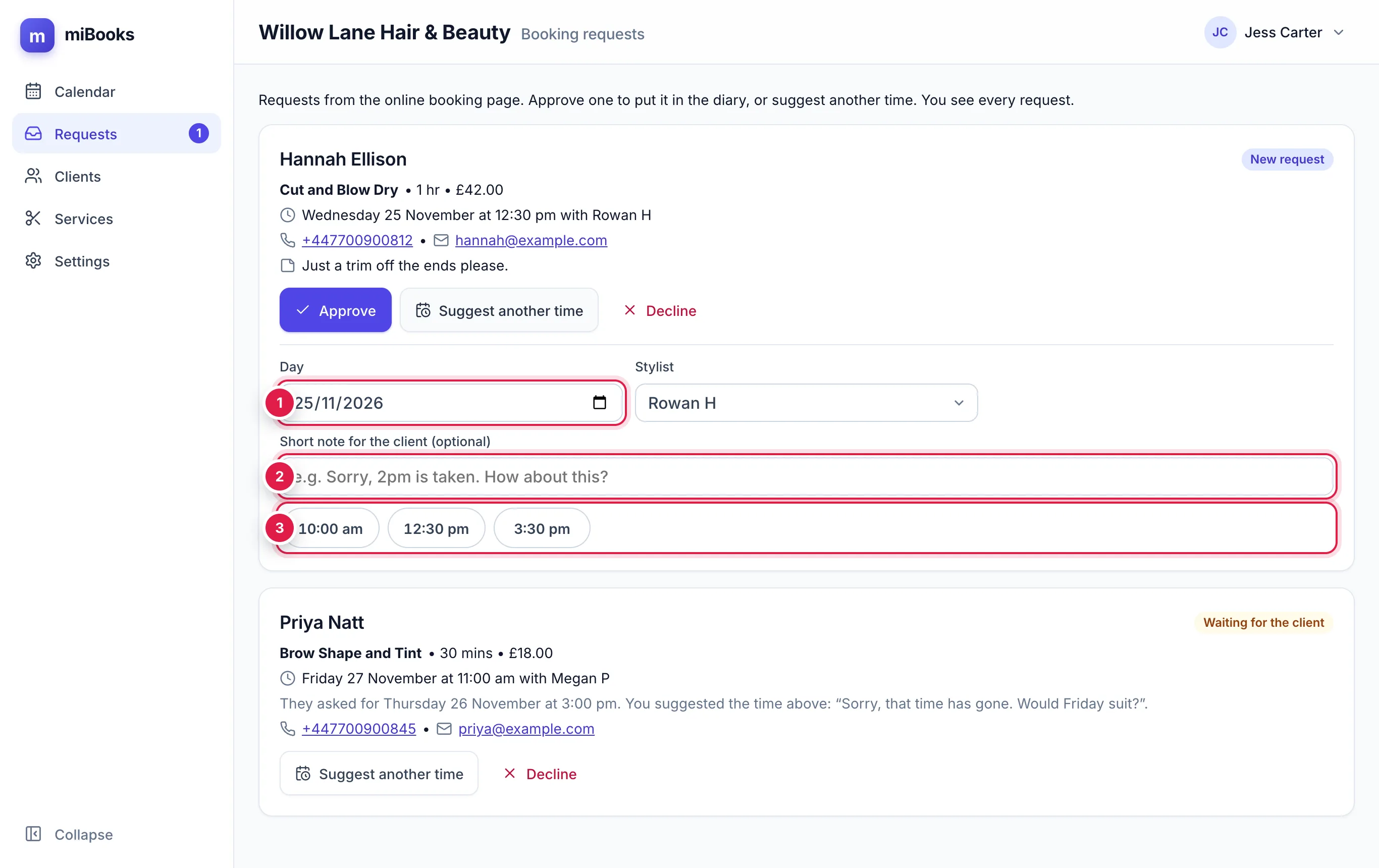
The request now shows Waiting for the client. They get an email with Accept this time and No thanks buttons:
- Accept: miBooks books it straight into the diary and emails everyone. You don't need to do anything.
- No thanks: the request closes and you're told by email.
You can suggest a different time again, or decline, while you're waiting.
Decline a request
Press Decline 4.
Type an optional message for the client, such as "Sorry, we're fully booked that week", and confirm.
The client is emailed straight away.
Emails at each step
| When | Who gets an email |
|---|---|
| A request comes in | The client (a copy of their request), the stylist and the admins |
| You approve it, or the client accepts your suggestion | The client (with an Add to calendar link and a calendar file), plus the stylist and the admins |
| You suggest another time | The client, with Accept this time and No thanks buttons |
| The client says no thanks | The stylist and the admins |
| You decline | The client |
Requests in the diary
Waiting requests show as dashed blocks so nobody books over them by accident. While a request is waiting, that time is also hidden from other clients booking online, unless your admin has switched this off.