Help centreSalon settings
Inviting staff and setting roles
Give each person their own login, choose what they can do, and find your way round Settings.
For adminsUpdated 14 Nov 2026
Invite someone
Everyone gets their own login. Never share one, because the Activity log records who did what.
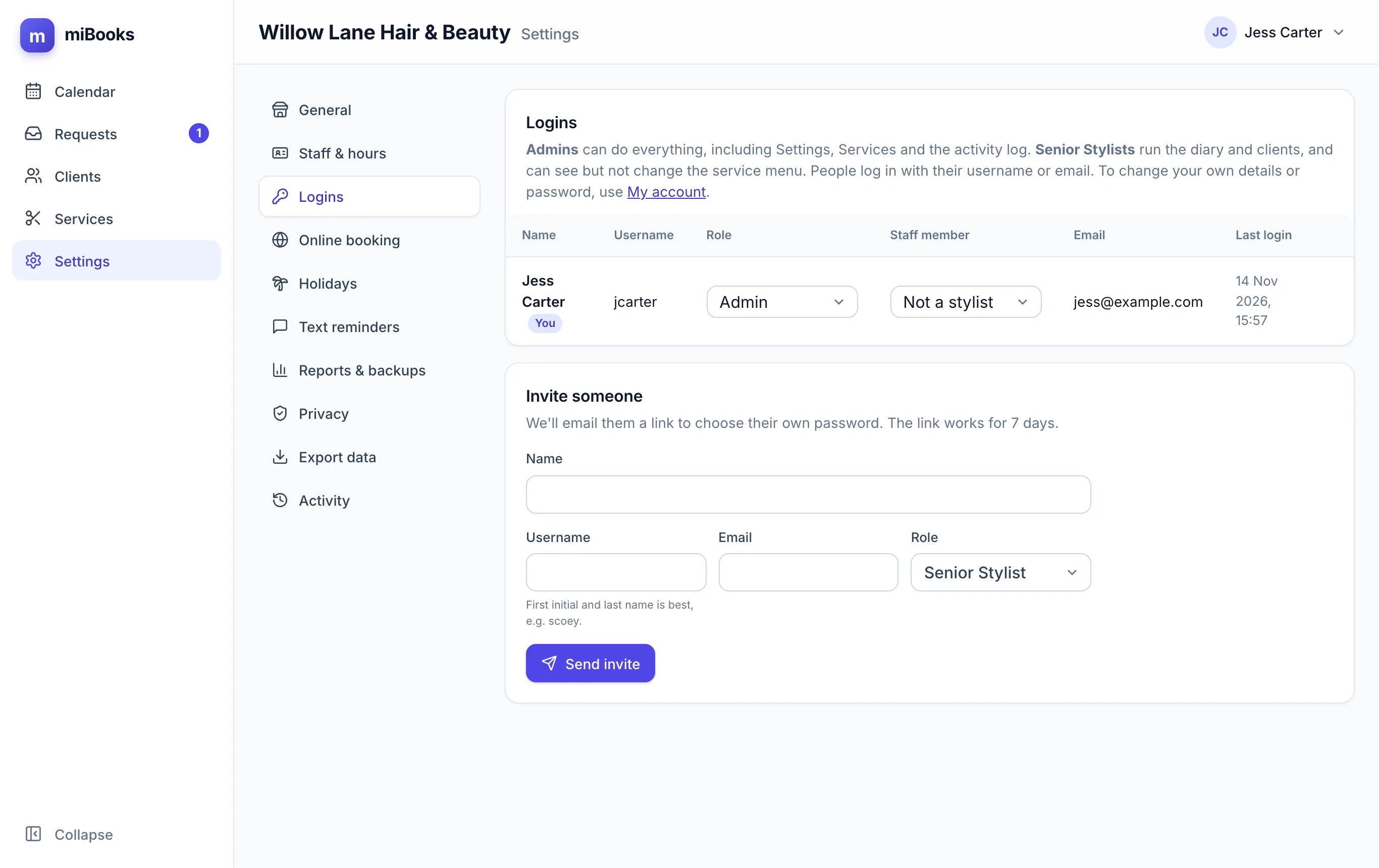
Go to Settings → Logins.
Under Invite someone, enter their Name, a Username (first initial and last name is best, for example
jsmith) and their Email.Choose their role: Admin or Senior Stylist. See Who can do what.
Press Send invite. They get an email with a link to choose their own password. The link works for 7 days.
You never set or see anyone's password.
Link a login to the diary
If the person is a stylist, choose their name under Staff member next to their login. This lets them:
- see and answer online booking requests for themselves;
- change their own calendar colour and weekly overview email in My account.
Reset a password or remove a login
- Send reset link emails them a link to choose a new password. It works once, for 1 hour.
- Remove takes their login away immediately. Their past work stays in the diary and the Activity log.
Where each setting lives
| Settings section | What's in it |
|---|---|
| General | Salon name, calendar hours, booking interval, closed days, and Check in/out and clean-up time switches |
| Staff & hours | Stylists, their colour, position, which services they do, weekly hours and time off |
| Logins | Who can sign in, and their role |
| Online booking | The client booking page. See Turning online booking on or off |
| Holidays | Dates the whole salon is closed |
| Text reminders | The reminder message and the iPhone set-up |
| Reports & backups | Takings and lapsed-client emails, error alerts, and backup downloads |
| Privacy | Your contact details for clients, and how long to keep old clients |
| Export data | Download clients, services and bookings as spreadsheets |
| Activity | Every change, who made it and when |