Getting started with miBooks
Sign in, find your way round, and set miBooks up on your phone or iPad so it opens like an app.
Sign in
Your salon has its own miBooks address, for example 123.mibooks.co.uk. Your salon admin sends you an invite email with a link to choose your password.
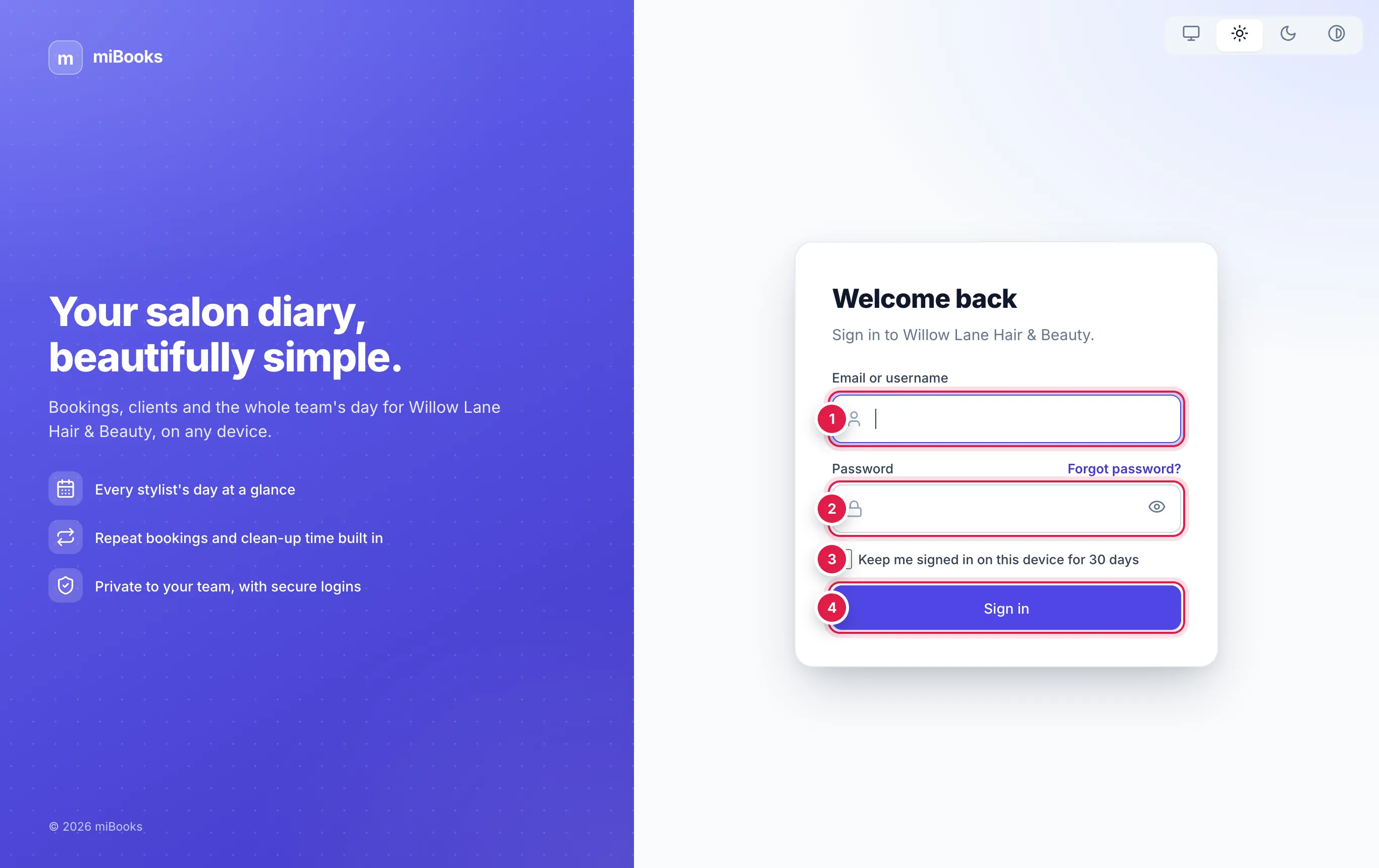
Open your salon's miBooks address.
Type your username or email 1 and your password 2.
On your own phone or iPad, tick Keep me signed in on this device for 30 days 3. Leave it unticked on a shared computer.
Press Sign in 4.
Find your way round
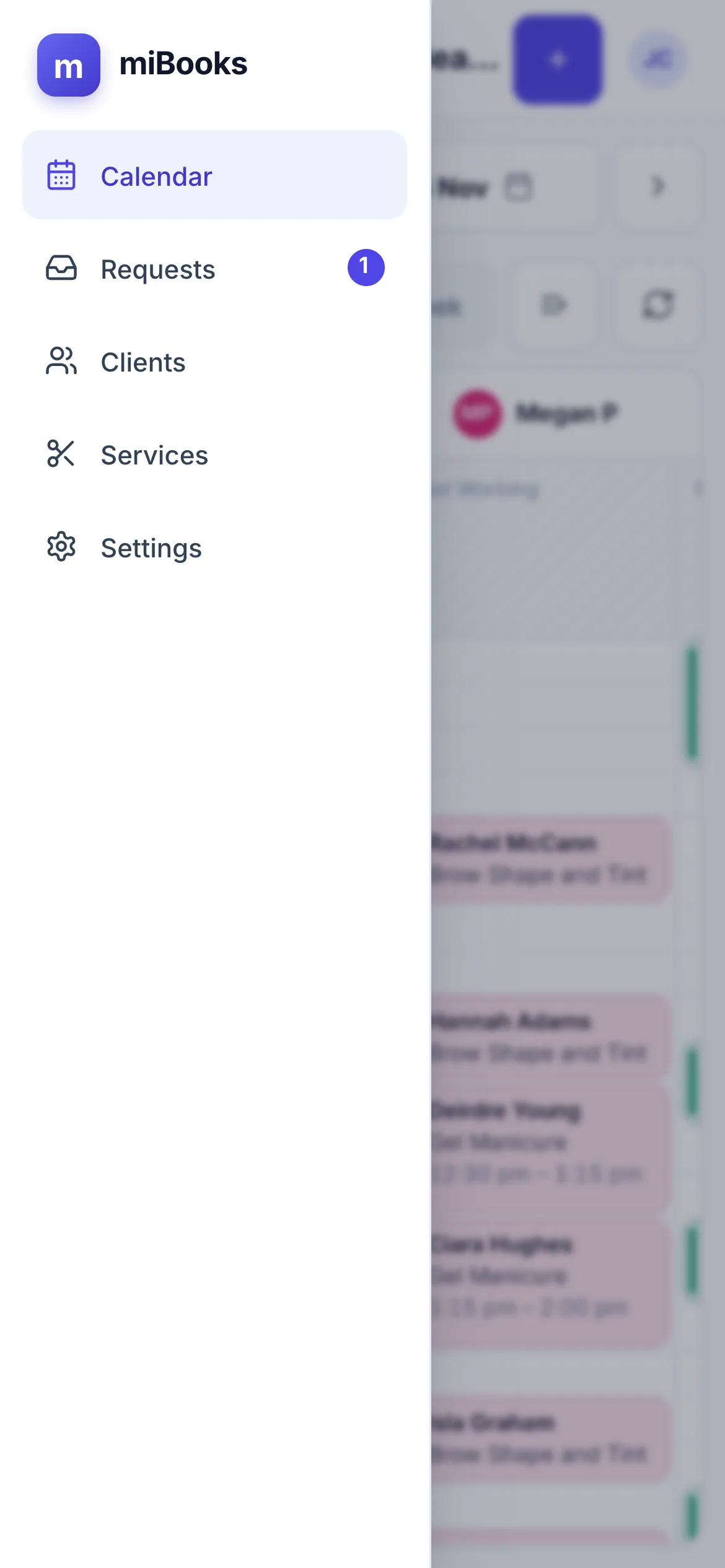
The menu down the left takes you to each part of miBooks:
| Menu | What it's for |
|---|---|
| Calendar | The diary: bookings for every stylist, day by day or week by week. |
| Requests | Online booking requests waiting for a decision (only if your salon uses online booking). |
| Clients | Every client's contact details, notes and booking history. |
| Services | Your service menu: lengths and prices. |
| Settings | Salon-wide settings (admins only). |
Your name is at the top right. Press it for My account (change your name, password or calendar colour), the Theme buttons and Log out.
Using miBooks on a phone or iPad
miBooks works in Safari or Chrome, with nothing to install. On a phone, the menu slides out from the ☰ button at the top left.
To open miBooks like an app, with its own icon and no browser bar:
Open your salon's miBooks address in Safari on your iPhone or iPad.
Tap the Share button, then Add to Home Screen.
Tap Add. miBooks now has its own icon on your home screen.
Light, dark and high contrast
Press your name at the top right, then pick a Theme:
- Match this device follows your phone or computer's own dark mode setting.
- Light and Dark.
- High contrast: black on white with bold outlines, for bright light or tired eyes.
Your choice is remembered on each device separately. This help centre uses the same choice, and you can change it with the buttons at the top of this page.