Finding your way round the diary
Day and week views, jumping to a date, showing one stylist, and what the colours and shading mean.
The diary screen
Calendar in the menu opens the diary. It refreshes by itself every minute, so new bookings from other devices appear without you doing anything.
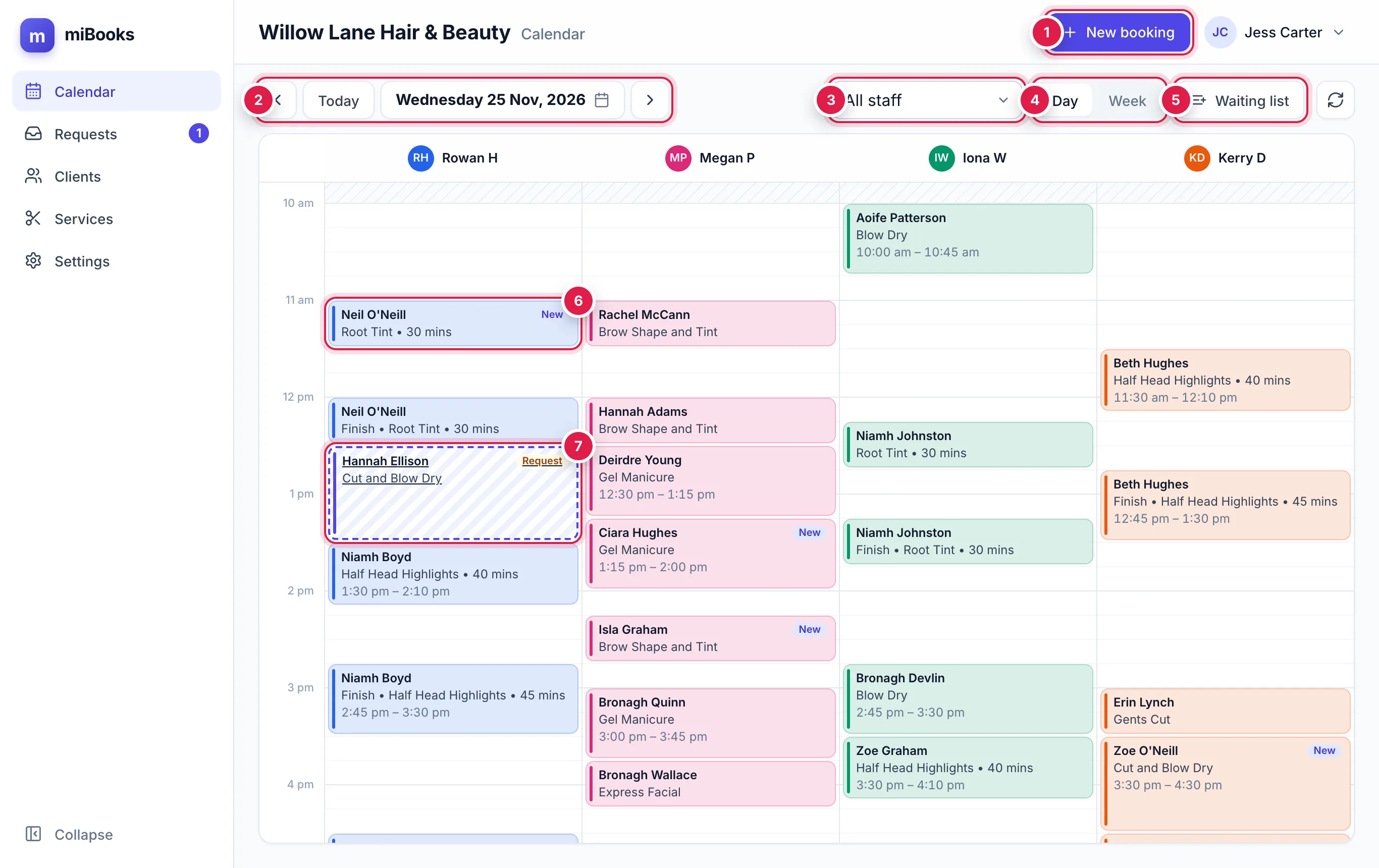
New booking 1 opens the booking form. See How to book a client.
‹ Today › and the date 2 move through the days. Press the date to pick any day from a calendar.
All staff 3 shows everyone, or pick one stylist.
Day / Week 4 switches between one day for everyone, and a whole week for one stylist.
Waiting list 5 shows clients waiting for a gap. The number on it is how many want the day on screen.
Each booking 6 is a card in the stylist's colour. Press it to see the details.
A dashed, striped block 7 is an online booking request that's waiting for a decision. Press it to open Requests.
What you'll see on a booking
- New means it's the client's first visit.
- No-show, Checked in and Completed show the booking's status.
- Grey striped time is outside that stylist's working hours ("Not Working"), including days off, holidays and time off.
- A red line marks the time now.
- Colour services such as tints show as two blocks, with the processing time in between left free for another client.
Week view
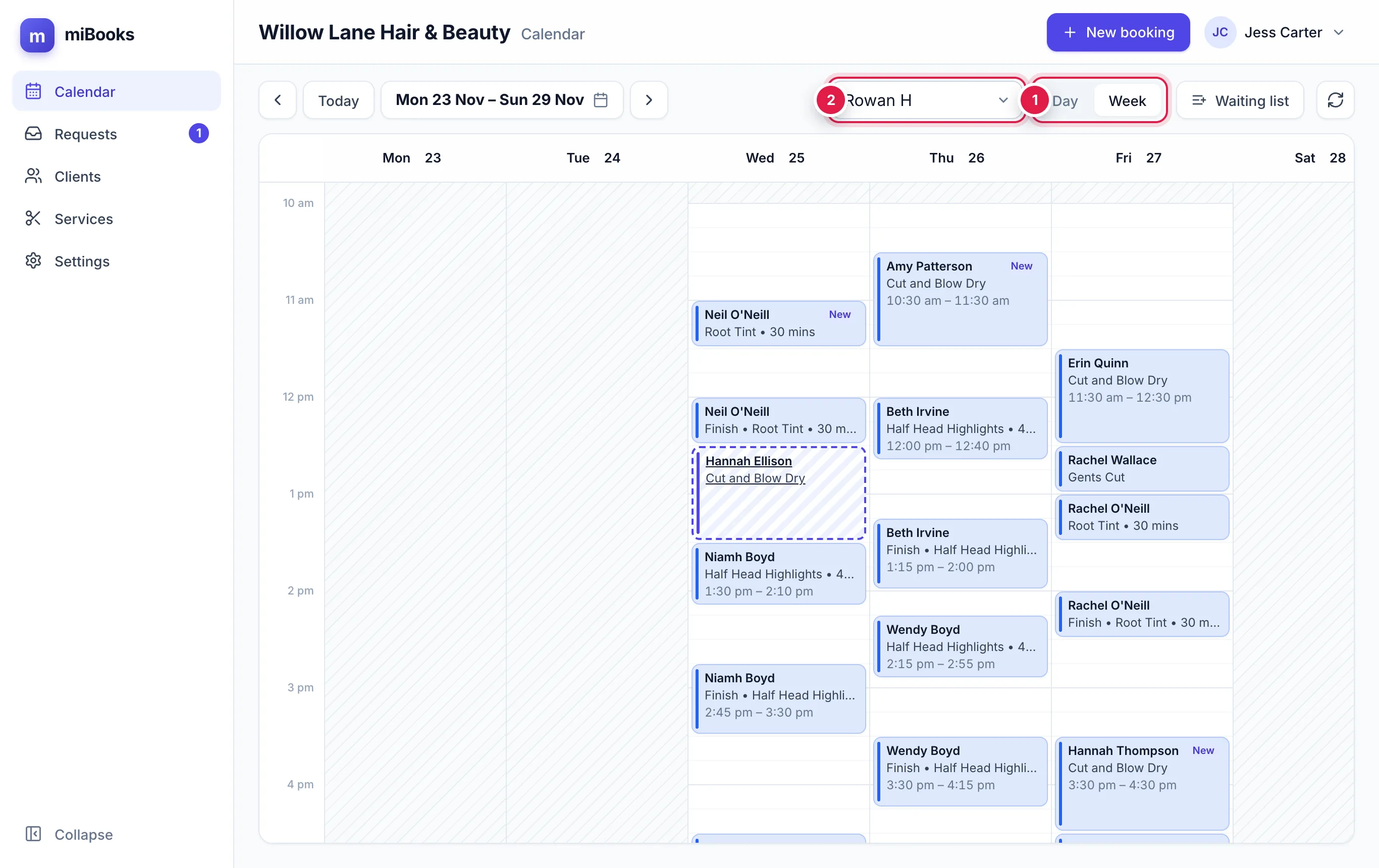
Week view shows seven days for one stylist, so choose who from the staff list.
Jumping ahead for a rebook
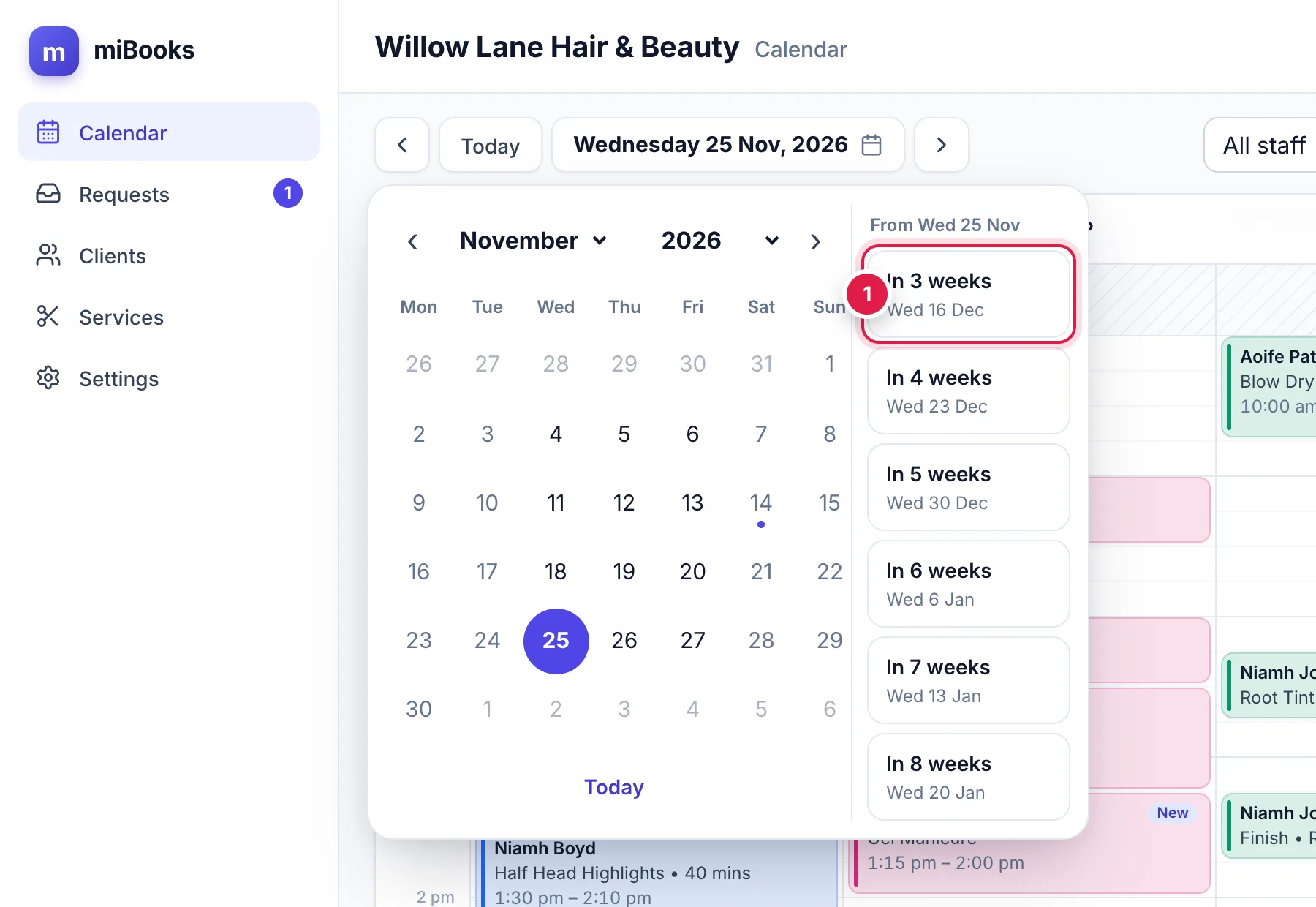
Press the date in the toolbar. As well as a month calendar, there are quick buttons In 3 weeks to In 8 weeks 1, counted from the day you're looking at.
On a phone
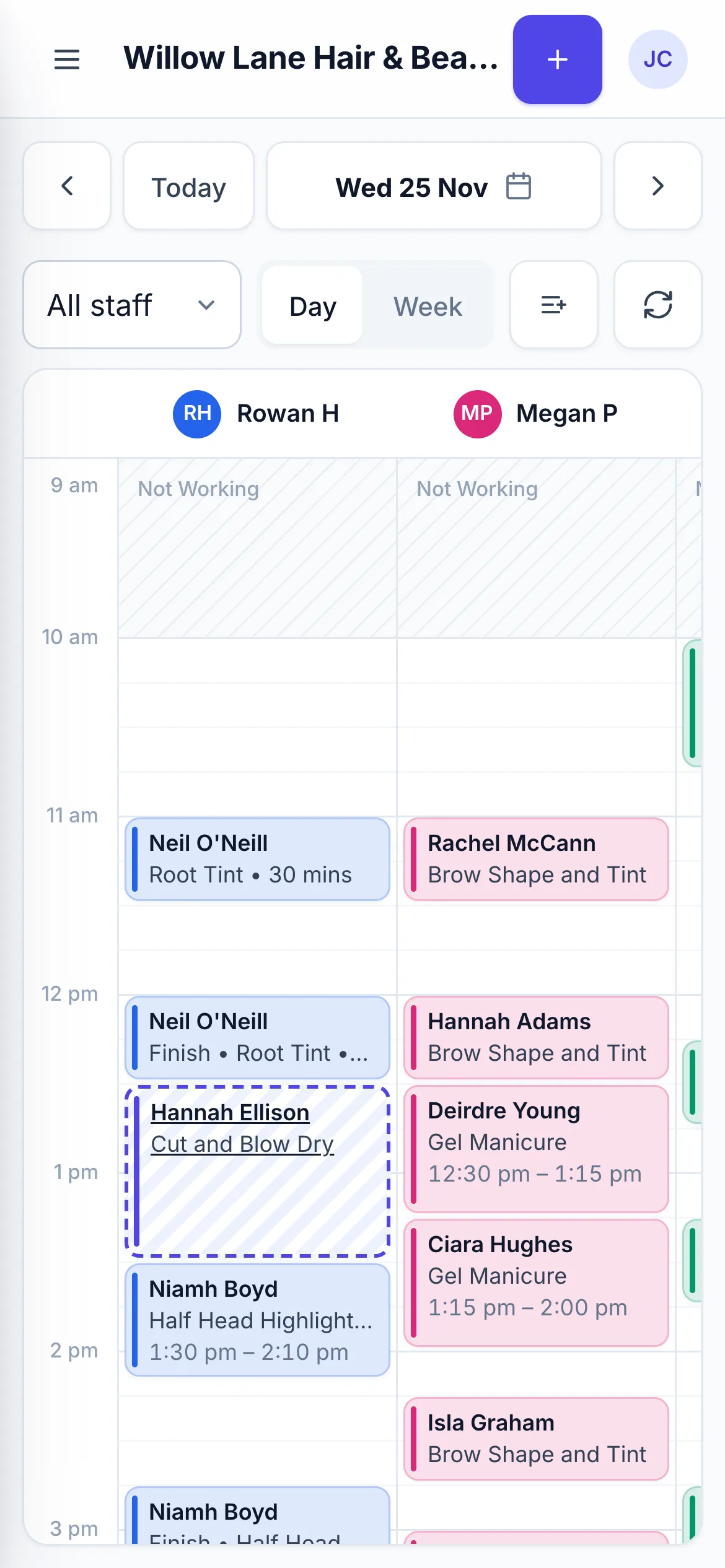
The diary works the same way on a phone. Pinch with two fingers to zoom the time grid in or out, and swipe sideways to see more stylists.