How to move, reschedule or cancel an appointment
Change a booking's details, drag it to a new time or stylist, or cancel it. The diary frees the time straight away.
Open the booking
Press any booking in the diary. Its details open beside the diary on a computer or iPad, or slide up on a phone.
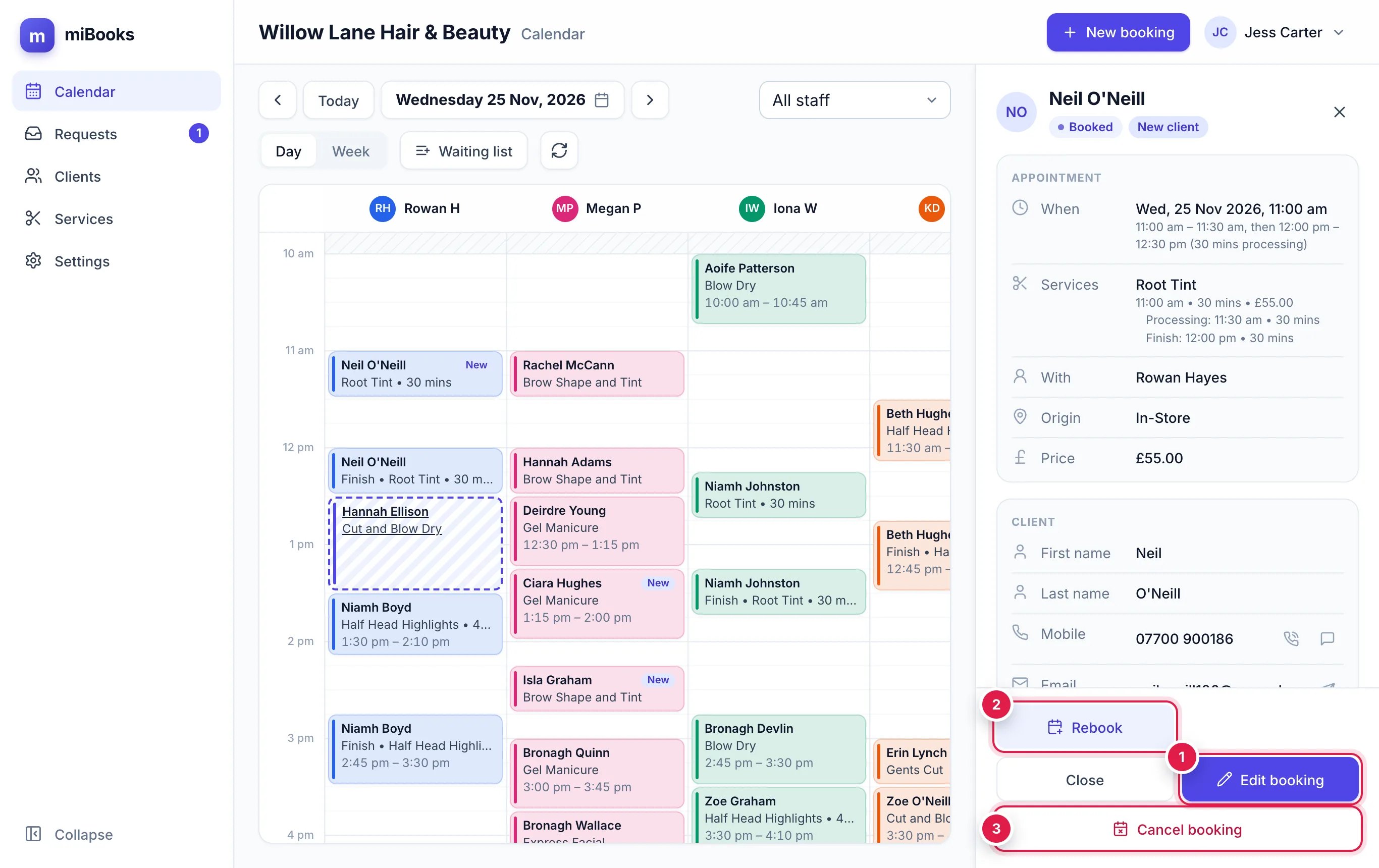
From here you can:
- Edit booking 1: change anything about it.
- Rebook 2: book their next visit. See Rebooking, no-shows and the waiting list.
- Cancel booking 3: cancel it and free the time.
You can also fix the client's name, mobile or email right here. Change it, and a Save button appears.
Move it by editing
Press the booking, then Edit booking.
Change the Date, Stylist or Start. The free times update for the new day and stylist.
Press Save.
The prices stay the same as when it was booked, even if your menu has changed since.
Move it by dragging
On a computer, press and hold the booking, then drag it. On a phone or iPad, press and hold for about half a second until it lifts, then drag. A normal swipe still scrolls the diary.
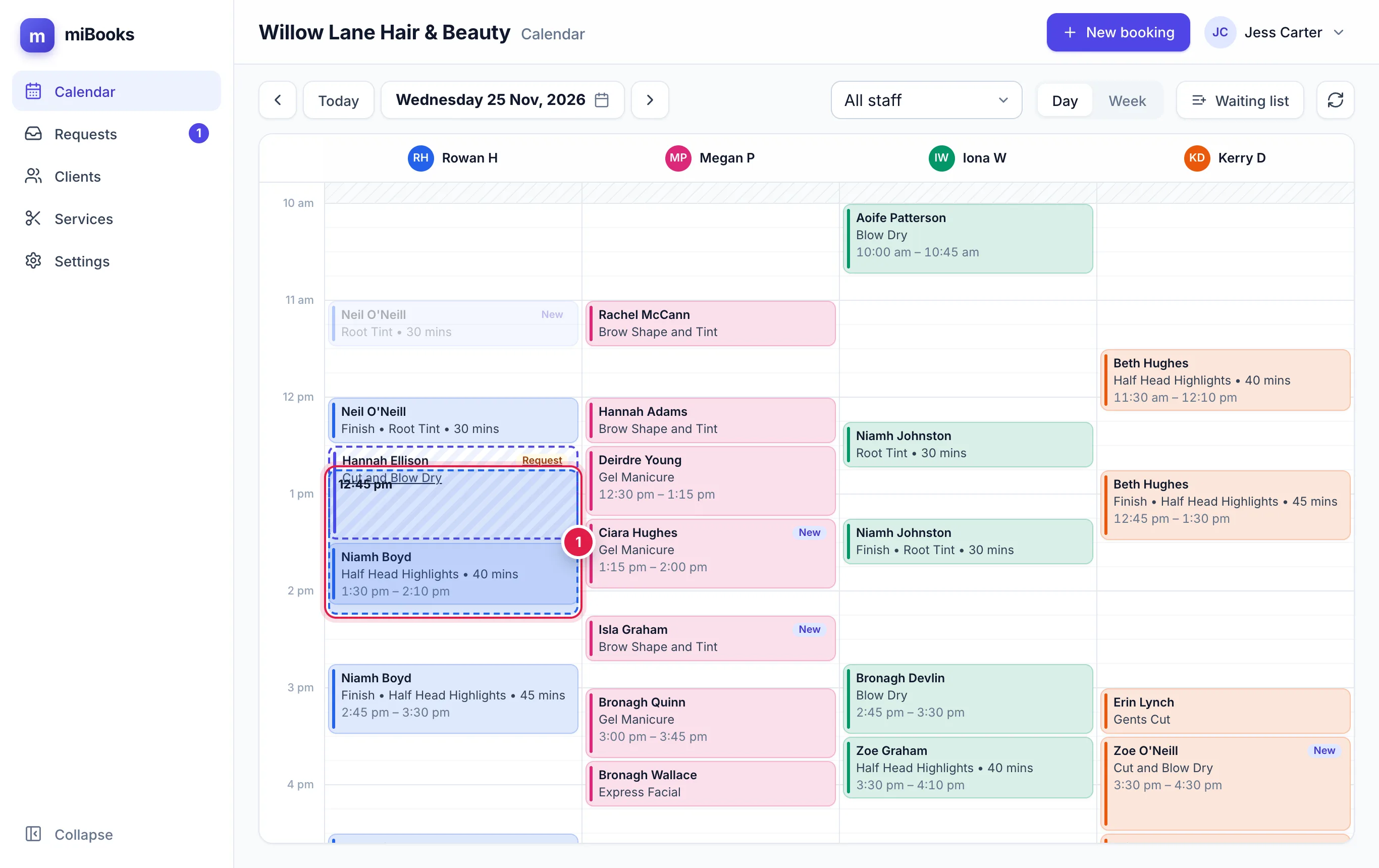
Drag the booking to the new time 1. In Day view you can drop it on another stylist's column. In Week view you can drop it on another day.
Let go. miBooks asks: "Move [client] from [old time] to [new time]?"
Press OK. Everything else about the booking stays the same.
How availability updates
As soon as you save, move or cancel, the old time becomes free. It shows up as a free time in the booking form, in Rebook, and to clients booking online. Other devices pick up the change within a minute, or straight away if they press the refresh button.
The same checks run as for a new booking: clashes, working hours, holidays and whether the stylist does that service. You'll see a warning if something doesn't fit. See Warnings you might see.
Cancel a booking
Press the booking, then Cancel booking.
Confirm. The time is freed, and the booking stays in the client's history marked Cancelled.
Repeating bookings
A booking that's part of a series shows Booking 3 of 10. To cancel the rest of the series, press Cancel this and the [number] after it. Earlier bookings aren't touched.